Saturday, March 23, 2013

Obeo at EclipseCon 2013

This week EclipseCon 2013 holds in Boston.


As usual, Obeo will actively participate to this event with the presence of seven of us:

Mélanie Bats

If you attend EclipseCon, try to catch them and ask them questions about EMF, Acceleo, EMF Compare, EEF, Mylyn Intent, Obeo Designer, Polarsys, Buildroot, ... they have a lot to say and to show about these topics!

But the best way remains to attend their talks:
Enjoy!

Thursday, March 21, 2013

Model-based configuration of assistive technology systems

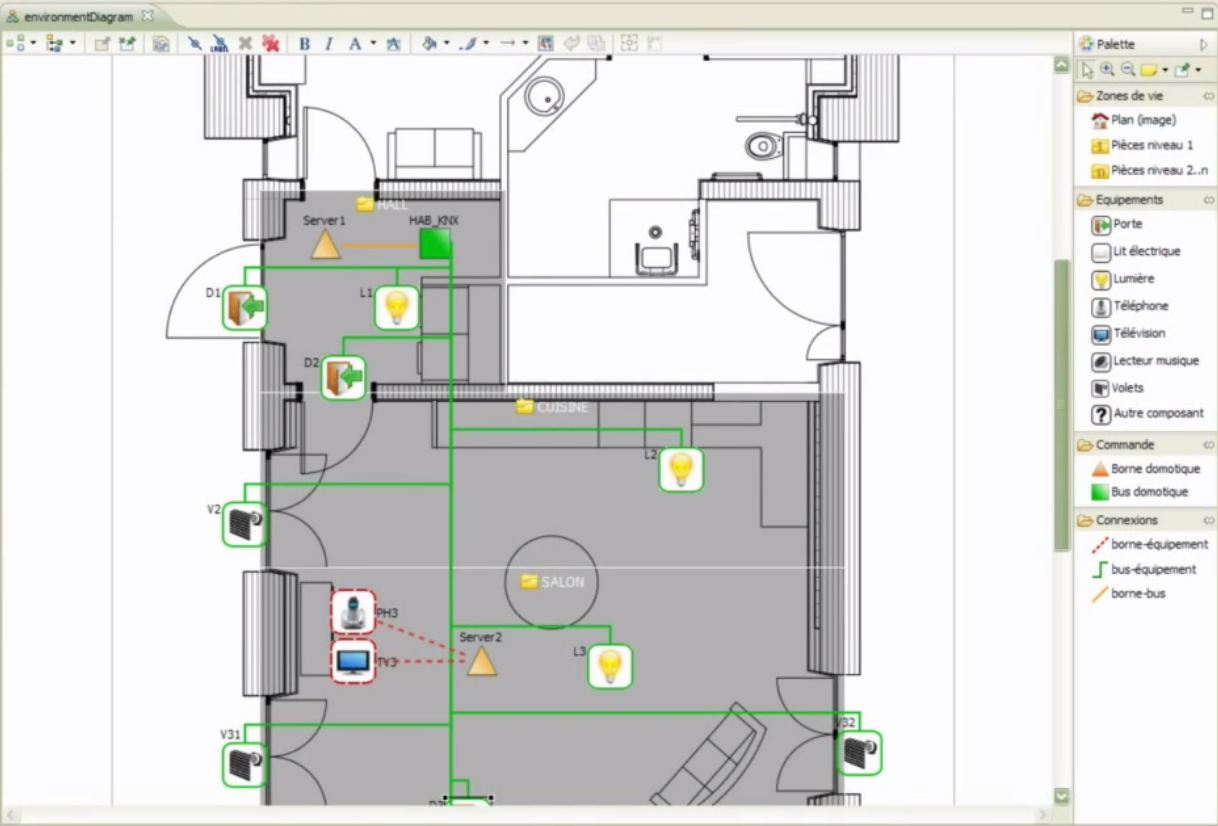
IntelHome Designer: a graphical designer to configure home automation systems for disabled persons. This is what Willy Allegre, of South Brittany University, has prototyped with Obeo Designer during his thesis at LAB-STICC laboratory.

IntelHome Designer consists in modeling a home with all its automated equipments. The model is used to generate configuration files for DANAH, a assistive technology system that pilots automated homes or medical structures. It provides users (elderly and the disabled) with a human machine interface to automate daily tasks.

The graphical designer allows non DANAH-expert persons to describe the environment (the home and its equipments) and the possible interactions between the users and these equipments.


This case-study illustrates a more and more widespread use of DSL (Domain Specific Language): models can be directly created by non-IT users in order to configure their applications. In a previous post, I already presented a similar case-study where models are used to configure an Insurance system.

This is made possible by new generations of tools, such as Obeo Designer, which greatly reduce the time to create graphical designers dedicated to a given DSL.


Thursday, November 22, 2012

Live demo of a graphical DSL

Last week I was in Toulouse, for the second step of Obeo Designer roadshow.

The evening, just after the roadshow, I have been invited by Toulouse JUG for a 15' talk.


I presented a live demo of Obeo Designer: from zero, I created a new graphical designer (definition of an Ecore model, generation of the EMF source code, creation of a sample model and definition of a diagram).

The presentation (in french) has been recorded. It is available on Parleys.com.


At the end, while I was presenting an existing designer (Graal Designer, a designer created for the french Ministry of Defence) Etienne, who was attending the presentation with his own machine, connected to my machine and hacked my diagram in live!

An interesting use-case of collaborative modeling ;-)

There were also four other presentations: GTB (by Baptiste Mathus), Jenkins (by Michaël Pailloncy), JavaFX2 (by Sebastien Bordes) and Scala (by Didier Plaindoux). These presentations are also on Parleys.com.

Thank you to Nicolas Zozol and Baptiste Mathus for the invitation to this event and its organization.

Tuesday, October 9, 2012

How to share a modeling project with other users?

In a previous post, I illustrated the Collaborative Modeling mode provided with Obeo Designer 6.

It allows several users to simultaneously edit a model and its diagrams. Thanks to the fine-grained locking mechanism, only the concerned model elements are locked, and automaticaly released once the modifications are saved.

Now, I will explain how to share a local modeling project on a server, in order to use this collaborative mode and to allow other users to collaborate with you on the same model.


To share a model with several users, only three steps are needed with Obeo Designer.

1) Start the server

The shared model must be hosted on a CDO server which has to be installed and started.

This can be done very easily with the sample CDO servers provided with Obeo Designer. These servers are available through Obeo Designer examples and can be launched with prebuilt Launch Configurations.

This video illustrates how to proceed.


Of course, for a large project, with important constraints, you will have to configure and administrate your own CDO server.

2) Share a Modeling Project

Once the server has started, you can use it to export a local Modeling Project.

This will copy your local project on the server and make it available for other users. 


This video illustrates how to proceed.


Then, this project can be used in a collaborative mode by any other user who can connect to the CDO server.

3) Work with a Shared Modeling Project

When a modeling project has been shared on a CDO server, other users can work with it in a collaborative mode.

They just have to locally create a new Shared Modeling Project which points to the project hosted on the server.


This video illustrates how to proceed.


This Shared Modeling Project is directly connected to the server and reflects all the changes done by all the other users on the same model.

Thursday, October 4, 2012

On the road again!

Once again, Obeo will hit the road with its hot new technologies and products in the bag.
We will meet with our partners, customers and technical community through three main events.

Obeo Designer Roadshow 2012


After the success of 2011's edition, we will organize a new roadshow which will pass through 4 cities in France:
  • Nantes (18/10)
  • Toulouse (15/11)
  • Paris (20/11)
  • Grenoble (6/12)
Each day is free and composed of two parts:

The morning, we will present how custom graphical designers can help in managing complexity and how to create this kind of tools with Obeo Designer. Then, we will let our partners and customers to present case-studies where they have used Obeo Designer. For the first date, in Nantes, case-studies will be presented by MMA and Thales Services.

The afternoon, is dedicated to a "hands-on" session. We encourage each participant to come with its own idea of a graphical designer. And, with the help of Obeo experts, we promise that everyone leave with a first version of a running designer!

Last year, participants left with designers for robots, SOA systems, IT infrastructure, authorization management, etc...


Enterprise Architecture Morning


The 16th of October, we will be in Paris to discuss about Enterprise Architecture.

The morning is free and will be composed of 4 main parts:

  • Obeo's approach to Enterprise Architecture
  • Case-Study by Choregie, in the Insurance domain
  • TEAP, a collaborative research project with Capgemini and DCNS.
  • SmartEA, the solution proposed by Obeo


At the end, we will keep time to allow participants to install SmartEA on their PC and to play with a sample model.


Obeo SmartEA allows Enterprise Architects to define their existing and target architectures (As-Is and To-Be), to evaluate gap analysis and define transformation scenarios. It provides:
  • a graphical environment based on Eclipse to edit TOGAF models
  • a viewpoint technology based on Obeo Designer to create new kinds of representations
  • a database repository to store the models and to allow collaborative work (technology based on Eclipse CDO)
  • connectors to federate existing information with the repository
  • architectural tools to study evolution plans and to analyze their impacts
  • a web client to navigate and to search into the models

EclipseCon Europe 2012


Last but not the least, like each year, Obeo will be present at Ludwigsburg (Germany) for the annual Eclipse conference in Europe.

EclipseCon Europe 2012


Obeo has been selected for 8 talks:


Sunday, September 23, 2012

Collaborative Modeling

The classical approach to collaborate on the same model is usually to split the model into several files managed with a source control system such as SVN.

There are two major problems to this approach:

  • lock granularity: it is not reasonable to create a file by model element. So, each time you need to modify an object, you lock all the other model elements contained in the same file.
  • real-time updates: when a modification occurs, the other users have to manually reload the files which contain the changes

These problems have been well described by Alex Lagarde in this post: Live Collaboration with Obeo Designer 6

The solution provided with Obeo Designer consists in a CDO-based repository which contains shared models and their representations (diagrams, tables and trees).


Each time a user changes the property of a model element, only this element is locked. The author of the modification sees a green padlock on the element, while other users instantly see a red padlock on each representation where the same element is visible.

On the example below, the family Smith and the man Paul are locked.


Once the modification is saved, the changes are automaticaly reflected to the other users.

I have created this video to illustrate the collaboration mechanism.


Tuesday, September 4, 2012

ESA Case-Study

Modeling Satellites Software Architecture, a European Space Agency research initiative


Would you develop a satellite application the same way you develop a «classic» application ?

Of course not!

When developing an application embedded in a satellite, a software engineer has to deal with many additional constraints:
1. The software platform is constrained by so many factors (energy consumption, temperature, scarce computational power and memory size, etc) that general purpose methodologies are not always applicable.
2. Computation time and duration must be highly predictable in order to satisfy the complex orchestration of actions performed by the satellite.
3. As failures may lead to loss of mission, catastrophic damages or loss of lives, the quality of the software drives the development process


In order to support these constraints, the European Space Agency (ESA) has initiated an investigation for the realization of  a software reference architecture (SRA) for on-board software. Based on solid scientific foundations and industrial feedback, the SRA aims at providing a common framework which can be reused for multiple missions in the space domain.


Marco Panunzio at the University of Padova (Italy) contributed to the investigation on the SRA during is PhD and later his post-doc. In his work, he defined the key principles, formulated a component model compliant with these principles, and developed a graphical modeling tool based on Eclipse and Obeo Designer for the development of on-board software compliant with the SRA.

The results were periodically submitted to a working group comprising space stakeholders, for assessment and refinement.

The cornerstone principle of the SRA is separation of concerns, which is used in order to separate different aspects of software design (functional and non-functional concerns, actor's area of expertise, etc) and address them with the best-fit formalisms, tools and verification techniques. Other key principles of SRA are composability, compositionality, property preservation and composition with guarantees.

These principles have driven Marco Panunzio to the definition of a component model which supports the concept of Design Views in order to decompose the global architecture of the system into more detailled constituents. Each Design View represents self-contained concerns relevant to a given stakeholder. A Design View can define its own rules (visualization and modification rights, graphical representation, constraints, verification, etc).

At the present state of the investigation, the SRA comprises six Design Views:
·      Data
·      Component
·      Behavioural
·      Hardware/Deployment
·      Non Functional
·      Implementation/Analysis

It is also complemented by domain-specific views. For example, a view has been implemented for the PUS (Packet Utilization Standard), to define the use of services which involve the transfer of telemetry and telecommand data between the ground segment and on-board applications.

 SRA Design Views


To create a satellite application according to this component model, a tool has been developed in Eclipse. It supports the seven aforementioned views via 19 kinds of diagrams and 8 kinds of tables. These views are completed by validation rules and specific actions (for intensive computations).

To develop these views, Marco Panunzio selected EMF (Eclipse Modeling Framework) and Obeo Designer. The resulting editor was later adopted and refined in subsequent ESA-funded studies.

Two strategies have been considered:
·      UML with a specific profile
·      a DSL (Domain Specific Model)

Because of the gap between the concepts of the SRA component model and those defined by UML, using UML in this context would have introduced unnecessary complexity. That's the reason why an Ecore metamodel (called SCM) implementing the component model concepts was developed. With this approach, the tool natively supports the component model of the SRA.

Then, to implement the diagrams which allow the user to edit and visualize the components, Obeo Designer was chosen.

Another alternative would have been to directly use GMF. But implementing 19 specific diagrams would have consumed most of the effort to the detriment of realizing and perfectioning the approach.

On the contrary, with Obeo Designer, the design views have been implemented much faster with a better support for extensibility and incremental adaptations. Most of all, it permitted fast iterations with stakeholders in the prototypal phase for delicate points of the methodology.

Below, you can see some examples of the diagrams created with Obeo Designer.

  • Hardware diagram: declaration of the processing units, sensors, actuators, devices and the interconnections between them
Hardware diagram


  • Processor board diagram: declaration of the internals of a processor board in terms of processors, processor cores, cache and memory banks.


  • Processor board diagram


  • PUS component instance diagram: monitoring and reporting of on-board parameters, commanding of on-board operations from the ground segment, etc…

  • PUS component instance diagram


    This initiative is a concrete contribution to the development of an on-board software reference architecture for future satellite systems.

    Relying on a complete component model and an associated graphical editor, SRA is currently used by several ESA-funded studies which are consolidating and validating the approach and the tools.

    This post is based on Marco Panunzio's document "Definition and realization of an on-board software reference architecture" available on www.obeonetwork.com (registration required).