Showing posts with label EMF. Show all posts

Tuesday, September 4, 2012

ESA Case-Study

Modeling Satellites Software Architecture, a European Space Agency research initiative


Would you develop a satellite application the same way you develop a «classic» application ?

Of course not!

When developing an application embedded in a satellite, a software engineer has to deal with many additional constraints:
1. The software platform is constrained by so many factors (energy consumption, temperature, scarce computational power and memory size, etc) that general purpose methodologies are not always applicable.
2. Computation time and duration must be highly predictable in order to satisfy the complex orchestration of actions performed by the satellite.
3. As failures may lead to loss of mission, catastrophic damages or loss of lives, the quality of the software drives the development process


In order to support these constraints, the European Space Agency (ESA) has initiated an investigation for the realization of  a software reference architecture (SRA) for on-board software. Based on solid scientific foundations and industrial feedback, the SRA aims at providing a common framework which can be reused for multiple missions in the space domain.


Marco Panunzio at the University of Padova (Italy) contributed to the investigation on the SRA during is PhD and later his post-doc. In his work, he defined the key principles, formulated a component model compliant with these principles, and developed a graphical modeling tool based on Eclipse and Obeo Designer for the development of on-board software compliant with the SRA.

The results were periodically submitted to a working group comprising space stakeholders, for assessment and refinement.

The cornerstone principle of the SRA is separation of concerns, which is used in order to separate different aspects of software design (functional and non-functional concerns, actor's area of expertise, etc) and address them with the best-fit formalisms, tools and verification techniques. Other key principles of SRA are composability, compositionality, property preservation and composition with guarantees.

These principles have driven Marco Panunzio to the definition of a component model which supports the concept of Design Views in order to decompose the global architecture of the system into more detailled constituents. Each Design View represents self-contained concerns relevant to a given stakeholder. A Design View can define its own rules (visualization and modification rights, graphical representation, constraints, verification, etc).

At the present state of the investigation, the SRA comprises six Design Views:
·      Data
·      Component
·      Behavioural
·      Hardware/Deployment
·      Non Functional
·      Implementation/Analysis

It is also complemented by domain-specific views. For example, a view has been implemented for the PUS (Packet Utilization Standard), to define the use of services which involve the transfer of telemetry and telecommand data between the ground segment and on-board applications.

 SRA Design Views


To create a satellite application according to this component model, a tool has been developed in Eclipse. It supports the seven aforementioned views via 19 kinds of diagrams and 8 kinds of tables. These views are completed by validation rules and specific actions (for intensive computations).

To develop these views, Marco Panunzio selected EMF (Eclipse Modeling Framework) and Obeo Designer. The resulting editor was later adopted and refined in subsequent ESA-funded studies.

Two strategies have been considered:
·      UML with a specific profile
·      a DSL (Domain Specific Model)

Because of the gap between the concepts of the SRA component model and those defined by UML, using UML in this context would have introduced unnecessary complexity. That's the reason why an Ecore metamodel (called SCM) implementing the component model concepts was developed. With this approach, the tool natively supports the component model of the SRA.

Then, to implement the diagrams which allow the user to edit and visualize the components, Obeo Designer was chosen.

Another alternative would have been to directly use GMF. But implementing 19 specific diagrams would have consumed most of the effort to the detriment of realizing and perfectioning the approach.

On the contrary, with Obeo Designer, the design views have been implemented much faster with a better support for extensibility and incremental adaptations. Most of all, it permitted fast iterations with stakeholders in the prototypal phase for delicate points of the methodology.

Below, you can see some examples of the diagrams created with Obeo Designer.

  • Hardware diagram: declaration of the processing units, sensors, actuators, devices and the interconnections between them
Hardware diagram


  • Processor board diagram: declaration of the internals of a processor board in terms of processors, processor cores, cache and memory banks.


  • Processor board diagram


  • PUS component instance diagram: monitoring and reporting of on-board parameters, commanding of on-board operations from the ground segment, etc…

  • PUS component instance diagram


    This initiative is a concrete contribution to the development of an on-board software reference architecture for future satellite systems.

    Relying on a complete component model and an associated graphical editor, SRA is currently used by several ESA-funded studies which are consolidating and validating the approach and the tools.

    This post is based on Marco Panunzio's document "Definition and realization of an on-board software reference architecture" available on www.obeonetwork.com (registration required).

    Thursday, May 31, 2012

    Modeling P&C Insurance Products, the MAIF Case-Study

    EMF (Eclipse Modeling Framework) is mostly used to create model-driven tools for software or system engineers. Here, in this case-study, an EMF-based tool is directly used by business domain experts to create models which are deployed and interpreted at runtime.

    MAIF is a french insurance company with 2.8 millions of insured members (ranked 5th in number of insured vehicules and habitations in France).

    They needed a tool to get a structured, centralized and unified vision of the P&C (property and casualty) products (IARD in french for Incendie, Accidents et Risques Divers).

    The goal was to provide to insurance business experts a dedicated tool to specify their marketing offers and the caracteristics of their products. 

    The solution is a product catalog composed of:
    • a product workbench (based on Eclipse) to define and administrate the products structure
    • a repository to store the models
    • a business rules engine (based on JRules) to manage and execute the rules related to the products
    Accessible via services the catalog is used to manage production version of contracts and claims.


    The structure of the catalog, developed with the assistance of Capgemini and Obeo, is based on an Ecore model which defines the P&C products concepts (catalog, product, coverage, risk object, provision, option, etc) and the way they can be composed.


    The product workbench is used by MAIF P&C experts to define the products and administrate their life-cycle.


    It provides graphical representations to create, modify, consult, version and validate the products.


    These GMF diagrams are graphical representations on EMF models describing each product. They have been specified with Obeo Designer

    They selected Obeo Designer in order to speed-up the definition of the important number of GMF views to develop and to facilitate their maintenance.

    Additional developments have been done in Eclipse to finalize the workbench:
    • RCP customization to simplify the workbench (menus, toolbars and views) according to the kind of users
    • integration of LDAP to authentificate the users and manage their roles (product manager, validator, ...)
    • integration of SVN to manage collaborative work on products

    The models created by the workbench are directly consumed by the IT system through distributed services (progressively remplacing legacy ones).

    Without the need of specific IT developements, the deployment of new products is reduced from several weeks to about one week.

    This new approach increases the agility of P&C products deployment by reducing the gap between business experts and IT.

      You can find a more detailed description of this case-study, written by MAIF, on www.obeonetwork.com, in the case-studies section of Obeo Designer group (registration required).


      Thursday, May 24, 2012

      Creating a new Ecore model with Obeo Designer 6.0

      One of the cool things coming with Obeo Designer 6.0 is the new "Ecore Modeling Project" creation wizard.


      It automatically creates an EMF project containing an Ecore model and its corresponding genmodel. This project is also created with the Modeling Project nature and a Obeo Designer representation file (.aird) containing a diagram (depending on the viewpoint selected with the wizard).


      This diagram is automatically opened and you can directly start graphically design your Domain Model.


      Once you have defined your packages, classes, attributes, relations, ... you just have to open the genmodel and generate the EMF code. Of course you can customize the genmodel to introduce your own generation choices.

      This video demonstrates this new wizard on a simple Ecore model.


      Monday, February 21, 2011

      Creation of a graphical designer in 5 minutes

      After one month at Obeo, the serious things have started for me ;-)

      I have spent the last two weeks discovering Obeo Designer 5.0 and working on the videos which will be available on the new website (www.obeodesigner.com). This new version is going to be officially released in ten days, so each minute counts!
      Obeo Designer is a tool which allows to create specific modelers in Eclipse. It is based on EMF, GMF and Acceleo.
      I have been very impressed by the ease and rapidity for creating my first designer. Of course I'm familiar with Eclipse and EMF, but I had never developped with GMF before. In one day, starting from scratch, I have been able to create my first designer, with several layers (to optionally show or hide some kinds of relations) and a table (to represent my model with lines).

      For the demos, we have volontarily chosen a very simple example to illustrate the Obeo Designer approach. With this example, the concept of Family (men and women related by parental relationships), each Obeo Designer functionality can be easily described.

      I have posted the first video today. It is a first overview which explains, in five minutes, how to create a first modeler with zero code and zero deployment.


      Other videos will come soon to demonstrate the other functionnalities. Stay tuned!

      Friday, December 17, 2010

      Traceability between an EMF Java model and the corresponding source code

      MoDisco 0.9M4 has been released this week with Eclipse Indigo M4.

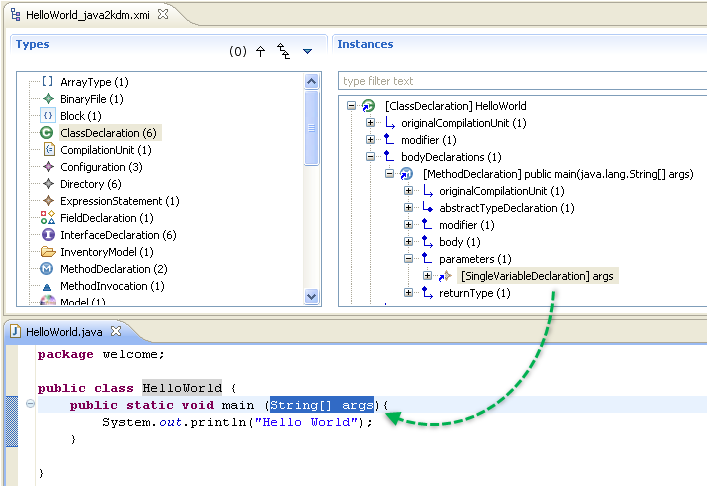
      One of the new interesting features is the traceability between an EMF model created from the reverse-engineering of a Java application and the corresponding source code.

      It allows to directly navigate from elements of the Java model in the MoDisco Model Browser to the corresponding code fragment in a Java editor.


      This feature is provided by a new Java discoverer which can be executed with the MoDisco menu "Discover Java and Inventory model from Java source code" available on a Java project.

      This discoverer automatically creates three EMF models:
      • a Java model describing the content of the source code: it is the model created by the basic Java discoverer.
      • a KDM Inventory model describing the structure of the Java project (all the files and folders).
      • a traceability model containing relations between the Java model elements and source code fragments
      If you need to know more about these models, you can read the documentation of the discoverer.

      When you launch the discoverer on a java project, the traceability model is automatically opened in the MoDisco model browser. 

      To activate the synchronization with the Java source code editor, you need to activate the "Synchronize with source code option". 


      Now, when you click on a model element in the model browser, the corresponding source code is automatically highlighted in the Java source code editor (otherwise, the double-click on an element opens the property view).

      Wednesday, December 15, 2010

      Spy On Your Models - Part 4

      In this sequence of posts, I explain how to use the Model Browser provided by MoDisco to inspect an EMF model.

      In the first three posts, I have described how to directly access to instances of a given type, how to navigate through the model elements and how to customize the browser.

      In this last post, I will now describe how to create and execute queries on model elements directly from the browser.

      The features presented in the previous posts, allow you to navigate through the elements of your model by traversing the links. You can also highlight some characteristics of specific elements by defining a customization which dynamically change their rendering (icon, label, font, color, etc).

      But in some situations, you would like to calculate values from model elements. These values could be of basic types (numbers or strings) or could be other model elements.

      MoDisco provides a mechanism to execute queries interactively on model elements selected in the Model Browser. First, I will explain how to execute queries, and we will see later in this post how to declare and implement them.

      There are two possibilities to execute a query.

      The first one consists in selecting model elements in the browser and clicking on the menu "Execute Query ...". It opens the "Query Execution" view which contains two main parts:

      • The elements on which to execute the query. It is filled with the elements you have selected, but you can also remove elements from this list or drag&drop new elements  from the browser.
      • The registered queries which can be executed on the selected elements


      When you click on "Execute" the selected query is executed on each model element and the result is displayed in a table (more possibilities will be provided with future versions).


      The table displays each returned value on a line. If the result is a basic type, the table contains only one column. But if the result is a model element, the table contains several columns:

      • A colum "Label" which contains the calculated label of the object.
      • A column "Metaclass" which contains the type of the object
      • A column "/eContainer" which contains the parent of the object
      • A column "Query Context" which contains the object for which the query has returned the object
      • A column for each attribute of the corresponding metaclass
      • A column for each reference of the corresponding metaclass (for nary references, the tablel displays the number of related objects).
      On each line, it is possible to re-execute a query or to browse the selected element with the model browser.

      To execute a query from the browser, the second possibility consists in adding the query to a model element in the browser by clicking on the menu "Dispaly Queries on Selected Element":


      A dialog is opened with all the applicable queries:


      The selected query is added to the model element. When you click on this query, it is executed and the result is displayed under the query:


      Now, to create your own query, the first step consists in creating a QuerySet in a MoDisco project: right-click on the project, select the menu "New>Other" and select "MoDisco / QuerySet model":


      Give a name to your new QuerySet and MoDisco creates it in the project:


      A QuerySet is a model which contains the declaration of the queries. The new QuerySet is empty. So, to start declaring the queries, just double-click on the QuerySet to open it with the dedicated editor:


      Now, you need to associate the QuerySet to a metamodel: all the queries will apply on model elements of the corresponding models. 

      Let's say we want to declare queries for UML model elements. This association is done in two steps: 
      • Load the ECore definition of the metamodel: right click on the ModelQuerySet instance, select the menu "Load meta-model ressource" and select the right ECore definition.

      • Associate this metamodel to the QuerySet: double-click on the ModelQuerySet instance to open its property view, click on the button in the "Associated Metamodels" property field, and select the metamodel.

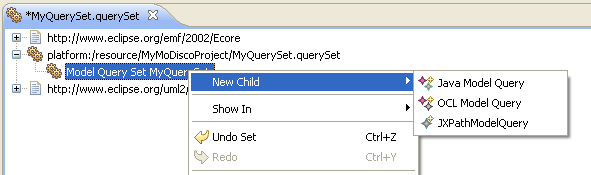
      Now, you can start declaring the queries: right-click on the ModelQuerySet instance and click on the "New Child" menu. You can declare queries of three kinds: Java, OCL or XPath.


      For each query, you have to declare its name, its scope (on which elements the query is applicable), its return type and its multiplicity (lower and upper bounds). Implementing the body of the query depends on the kind of query:
      • OCL: enter an OCL expression in the "Query" property
      • XPath: enter an XPath expression in the "Query" property
      • Java: enter the name of a Java class which implements the query


      To know more about how to declare a Query, you can read the reference documentation of the MoDisco QueryManager.


      Tuesday, November 9, 2010

      An Eclipse Modeling Week

      Last week, I participated to Eclipse Summit Europe 2010 in Germany.

      I started tuesday with a talk at the Eclipse Modeling Symposium (you can read my previous post: Using EMF to represent Eclipse 3.x plug-ins , and a complete summary of the symposium on Ed Merks' blog).

      Then thursday, with Grégoire Dupé, I presented EMF Facet, the new Eclipse/Modeling project we have created to allow dynamic extensions of existing EMF models.

      We have finished the week friday, at Eclipse Day Paris, by a presentation of MoDisco, the Eclipse/Modeling project dedicated to Model-Driven Software Modernization.

      MoDisco at Eclipse Day Paris 2010

      Now, we can come back to a normal activity ... until MD Day 2010, the 25th of November in Paris.

      Thursday, October 28, 2010

      Spy On Your Models - Part 3


      In this sequence of posts, I explain how to use the Model Browser provided by MoDisco to inspect an EMF model.


      In the first two posts, I have described how to directly access to instances of a given type, and how to navigate through the model elements. In this third post, I will now describe how to customize the browser.


      When your model contains a large number of model elements, you need help to identify the nature of the objects your are looking for. A good idea is to define a graphical extension to associate a specific graphical rendering (icon, label, color, etc). It can be achieved with the EMF.Edit framework by developing content and label provider classes. You can develop and deploy a new plug-in, and once this plug-in is installed, the customization is applied systematically. 


      But in some situations, you need a more flexible customization. A customization which presents the model according to a given viewpoint. A customizations that you apply temporarily, depending on a working situation. 
      This is what you can do by creating a UICustom model. 


      A UICustom model defines graphical properties for elements of a metamodel (a ECore model). These properties can be loaded dynamically by the Model Browser and applied to the model elements.
      First, you have to create a new MoDisco project:


      Then, create a UICustom model in this project:


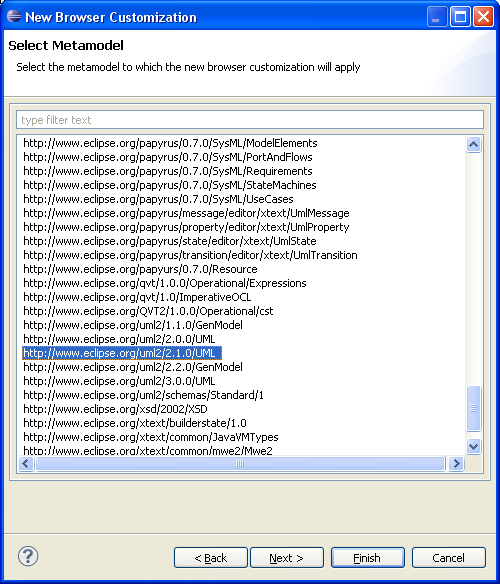
      The UICustom creation wizard asks which is the metamodel to be customized. It proposes all the ECore models registered in your Eclipse:


      Once created, you can edit the UICustom model with the editor provided by MoDisco:


      Now you can select a metaclass and edit its graphical properties (label, bold, italic, font, color, icon, visible, etc). You can also customize the attributes and the references of the metaclass.


      Each graphical property can be set with a static value (for example, define a new icon for all the instances of Class) or a dynamic value, computed by a Query (for example, the label of an instance of Class can be italic if its "isAbstract" value is true).


      To understand how to define a customization, you can read the user manual in the MoDisco wiki.


      Once saved, a UICustom is applicable. Click on the "Load Customization" button in the toolbar :


      Your UICustom model appears with all the other registered UICustom models. You can select it to apply it on the current model loaded in the Model Browser.


      In the next post, I will describe how to create and execute queries on model elements directly from the Model Browser.

      Monday, October 18, 2010

      Spy On Your Models - Part 2


      In this sequence of posts, I explain how to use the Model Browser provided by MoDisco to inspect an EMF model.

      In the first post, I have described the Types panel which allows to directly access to all the EMF instances of a given EClass. In this second post, I will now describe the Instances panel which allows to inspect an EMF object and navigate to all the other connected EMF objects.


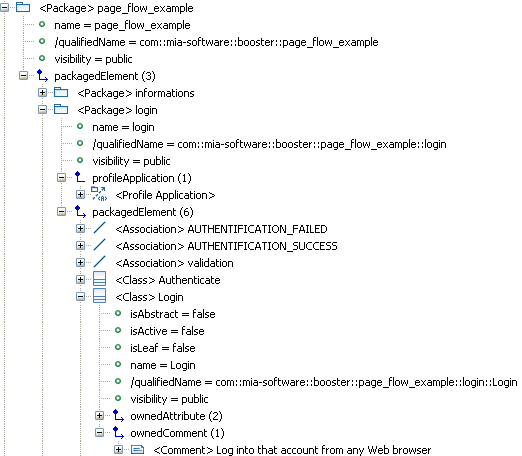
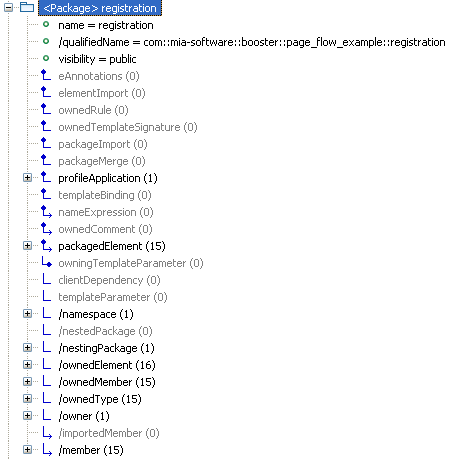
      This panel is a tree containing all the instances of the type selected in the Type panel. If you open a model element, you can see all its properties: the attributes and the references declared by the type (the metaclass) in the corresponding ECore model (the metamodel).


      The attributes are displayed with a green bullet and the value of the selected instance. The references are displayed with an icon inspired by UML associations: containment references have a diamond (like UML compositions), references with no opposite are terminated by an arrow (like UML navigable roles). Derived properties are prefixed by "/".

      On each reference, you can right-click and select the "Add child" menu to add new EMF objects.


      If you want to hide empty and derived references, unselect the buttons "Show Empty Links" and "Show Derived Links". Then the tree will only display setable references which have at least one connected object.


      When you open a reference, you can see all the objects connected through this reference. This is very helpful to know how the objects are connected to each other. Especially when the current type declares several references of the same type: in this case, you see precisely the connected objects under each reference.

      This instance tree proposes several other interesting options.


      Let's see some of these options:
      • Show Multiplicity: This option displays the upper and lower bounds (between square brackets) of each structural feature as they are defined in the corresponding ECore model.
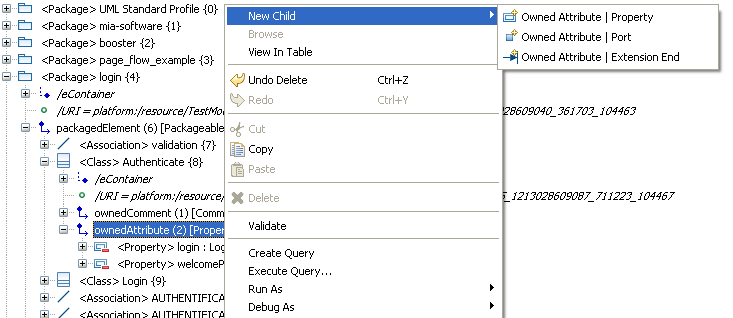
      • Show Ordering: This option displays the index (between square brackets) of each element under a reference which has the "ordered" ECore property set to true. It is useful if you have already selected the "Sort instances" option which displays the elements in an alphabetical order. See below the instances of Property sorted by name under the ownedAttribute reference: they are suffixed by the index within the list of attributes of the current class.
      • Show Opposite Links: this option indicates the name of the opposite links (if there is one defined in the ECore model). This option helps to know which reference allows to go back to a given object. Below, you can see that the owner reference can be used to go from an instance of Comment back to the class CollectInformation.
      • Show Container: When there is no opposite link defined, this option helps you to go back to the container (the objects which holds the current object with a "containment" reference). The eContainer reference is part of the EMF framework.

      • Show Types of Links: This option indicates the Type declared for each reference. It is useful to know what kind of objects you can find under a reference. Below, you can see that the packagedElement reference accepts instances of PackageableElement. It explains why you find instances of Class and Association which both inherit from PackageableElement.

      In the next post, I will explain how this browser can be dynamically extended and customized.