Tuesday, November 9, 2010

An Eclipse Modeling Week

Last week, I participated to Eclipse Summit Europe 2010 in Germany.

I started tuesday with a talk at the Eclipse Modeling Symposium (you can read my previous post: Using EMF to represent Eclipse 3.x plug-ins , and a complete summary of the symposium on Ed Merks' blog).

Then thursday, with Grégoire Dupé, I presented EMF Facet, the new Eclipse/Modeling project we have created to allow dynamic extensions of existing EMF models.

We have finished the week friday, at Eclipse Day Paris, by a presentation of MoDisco, the Eclipse/Modeling project dedicated to Model-Driven Software Modernization.

MoDisco at Eclipse Day Paris 2010

Now, we can come back to a normal activity ... until MD Day 2010, the 25th of November in Paris.

Wednesday, November 3, 2010

Using EMF to represent Eclipse 3.x plug-ins

Yesterday was the first day of Eclipse Europe Summit 2010 in Ludwigsburg. The afternoon, I participated to the Eclipse Modeling Symposium organized by Ed Merks and Sven Efftinge. 


The room was crowded: I evaluated more than 150 attendees to this 4 hours session. It has been a very good opportunity to get an overview of how dynamic is the modeling world in Eclipse. There have been 15 presentations about models migration, graphical modelers (even in 3D !), models testing, code generation, documentation generation, new features for textual DSLs, and many other topics… (you can find a summary on the Mäd Meiers' blog).


I really appreciated the Papyrus presentation, especially when Remi Schnekenburger of CEA explained how they have integrated MoDisco to provide customizable navigation through the models ;-)


I also got the chance to give a presentation during this session. This presentation was about using EMF to describe existing plug-ins developed for Eclipse 3.x. The idea is to create models from the main artifacts which compose an existing plug-in: 
  • An inventory model (using KDM Source) for the organization of the plugin (folders and files)
  • A comprehensive Java model (using MoDisco) from the Java source code
  • A specific model to describe the MANIFEST.MF file
  • Several XML models (using MoDisco) for the .classpath, .project and plugin.xml files
  • Two KDM models for the content of the plugin.properties and build.properties
These models are referenced by a last model which describes the whole plug-in. 


Here, the main benefit of the approach is not to raise the level of abstraction (the classical benefit of Model-Driven Engineering), but to go from an heterogeneous world (with various file formats) to an homogeneous world (EMF models) where you can manipulate all the information by using EMF APIs (and then any EMF compliant tool).


Then, I presented three examples of how this kind of model can be used:
  • Quality Analysis: by introspecting the model of the plug-in to check development rules, we can create a model of violations and inject this model into the Eclipse Problem View.
    • Refactoring: by transforming the model of the plug-in and then regenerate it, we can adapt an existing Eclipse 3.x plug-in to fit with the E4 compatibility layer.


    • Release Engineering: by extracting additional models from the content of update sites, we are experimenting constraints solver to calculate and evaluate possible build configurations and initialize B3 models.


    The slides of my presentation are available on Slideshare.


    Today I will try to combine official sessions (to discover what is coming from other projects) and side discussions with persons who are interested in our work (several meetings are already planned about MoDisco and EMF Facet). 


    ESE is definitely too short :-(

    Thursday, October 28, 2010

    Spy On Your Models - Part 3


    In this sequence of posts, I explain how to use the Model Browser provided by MoDisco to inspect an EMF model.


    In the first two posts, I have described how to directly access to instances of a given type, and how to navigate through the model elements. In this third post, I will now describe how to customize the browser.


    When your model contains a large number of model elements, you need help to identify the nature of the objects your are looking for. A good idea is to define a graphical extension to associate a specific graphical rendering (icon, label, color, etc). It can be achieved with the EMF.Edit framework by developing content and label provider classes. You can develop and deploy a new plug-in, and once this plug-in is installed, the customization is applied systematically. 


    But in some situations, you need a more flexible customization. A customization which presents the model according to a given viewpoint. A customizations that you apply temporarily, depending on a working situation. 
    This is what you can do by creating a UICustom model. 


    A UICustom model defines graphical properties for elements of a metamodel (a ECore model). These properties can be loaded dynamically by the Model Browser and applied to the model elements.
    First, you have to create a new MoDisco project:


    Then, create a UICustom model in this project:


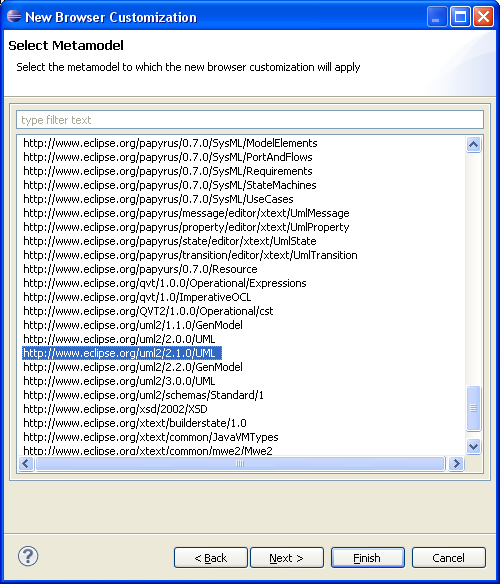
    The UICustom creation wizard asks which is the metamodel to be customized. It proposes all the ECore models registered in your Eclipse:


    Once created, you can edit the UICustom model with the editor provided by MoDisco:


    Now you can select a metaclass and edit its graphical properties (label, bold, italic, font, color, icon, visible, etc). You can also customize the attributes and the references of the metaclass.


    Each graphical property can be set with a static value (for example, define a new icon for all the instances of Class) or a dynamic value, computed by a Query (for example, the label of an instance of Class can be italic if its "isAbstract" value is true).


    To understand how to define a customization, you can read the user manual in the MoDisco wiki.


    Once saved, a UICustom is applicable. Click on the "Load Customization" button in the toolbar :


    Your UICustom model appears with all the other registered UICustom models. You can select it to apply it on the current model loaded in the Model Browser.


    In the next post, I will describe how to create and execute queries on model elements directly from the Model Browser.

    Monday, October 18, 2010

    Spy On Your Models - Part 2


    In this sequence of posts, I explain how to use the Model Browser provided by MoDisco to inspect an EMF model.

    In the first post, I have described the Types panel which allows to directly access to all the EMF instances of a given EClass. In this second post, I will now describe the Instances panel which allows to inspect an EMF object and navigate to all the other connected EMF objects.


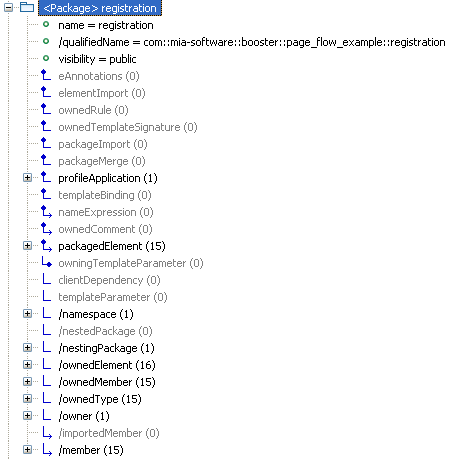
    This panel is a tree containing all the instances of the type selected in the Type panel. If you open a model element, you can see all its properties: the attributes and the references declared by the type (the metaclass) in the corresponding ECore model (the metamodel).


    The attributes are displayed with a green bullet and the value of the selected instance. The references are displayed with an icon inspired by UML associations: containment references have a diamond (like UML compositions), references with no opposite are terminated by an arrow (like UML navigable roles). Derived properties are prefixed by "/".

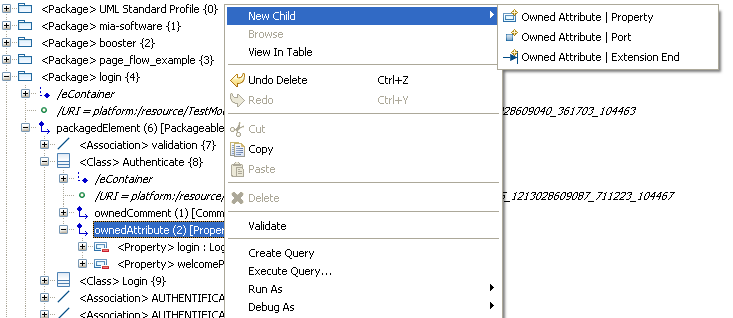
    On each reference, you can right-click and select the "Add child" menu to add new EMF objects.


    If you want to hide empty and derived references, unselect the buttons "Show Empty Links" and "Show Derived Links". Then the tree will only display setable references which have at least one connected object.


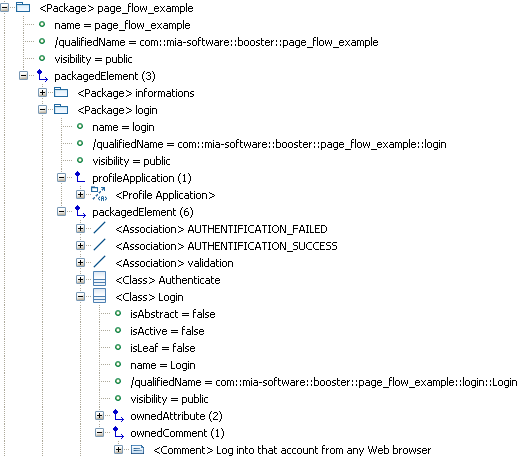
    When you open a reference, you can see all the objects connected through this reference. This is very helpful to know how the objects are connected to each other. Especially when the current type declares several references of the same type: in this case, you see precisely the connected objects under each reference.

    This instance tree proposes several other interesting options.


    Let's see some of these options:
    • Show Multiplicity: This option displays the upper and lower bounds (between square brackets) of each structural feature as they are defined in the corresponding ECore model.
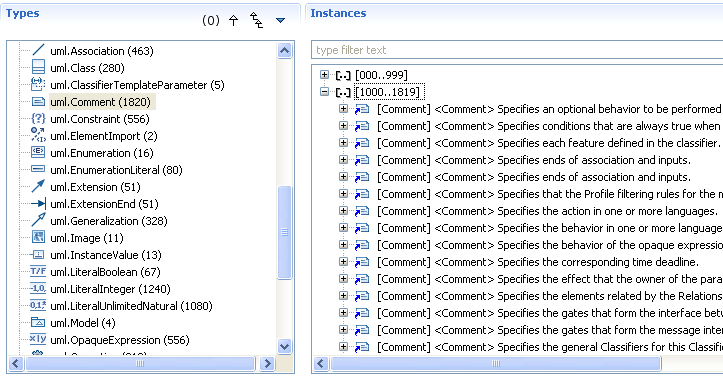
    • Show Ordering: This option displays the index (between square brackets) of each element under a reference which has the "ordered" ECore property set to true. It is useful if you have already selected the "Sort instances" option which displays the elements in an alphabetical order. See below the instances of Property sorted by name under the ownedAttribute reference: they are suffixed by the index within the list of attributes of the current class.
    • Show Opposite Links: this option indicates the name of the opposite links (if there is one defined in the ECore model). This option helps to know which reference allows to go back to a given object. Below, you can see that the owner reference can be used to go from an instance of Comment back to the class CollectInformation.
    • Show Container: When there is no opposite link defined, this option helps you to go back to the container (the objects which holds the current object with a "containment" reference). The eContainer reference is part of the EMF framework.

    • Show Types of Links: This option indicates the Type declared for each reference. It is useful to know what kind of objects you can find under a reference. Below, you can see that the packagedElement reference accepts instances of PackageableElement. It explains why you find instances of Class and Association which both inherit from PackageableElement.

    In the next post, I will explain how this browser can be dynamically extended and customized.

    Thursday, October 14, 2010

    Spy On Your Models - Part 1

    Have you ever been stuck with an EMF model, trying to find what was going wrong? Which relation is broken or missing ? Where is that model element which should be there, related to that other one ? How many instances this EClass has in the model ?

    Of course, you can use the EMF reflexive editor. It is suitable for small models, but when your model contains a lot of model elements it is hard to find your way (you must start from the roots elements, you don't see the name of the relations between the objects, the tree doesn't show the objects pointed by non-containment relations, etc).

    So, if you really need this kind of information (and if you are not an expert in reading XMI files in plain text), the model browser provided by MoDisco is a solution for you.

    To allow inspecting the details of large and complex EMF models, MoDisco (the Eclipse/modeling project dedicated to Software Modernization) provides an editor with lots of interesting features.

    After MoDisco installation, you can right-click on any EMF resource and open the browser by selecting the menu "Open with > MoDisco Browser".


    In this suite of posts, I will describe the main features of this tool.

    The first feature is a panel, on the left-side of the browser, displaying the classes (metaclasses) of the corresponding ECore definition (the metamodel). The selection of a type displays all its instances in the right-side panel. Each type is suffixed by the number of its instances. By default, only the types with at least one instance are listed, but if you click on the "(0)" button, the empty metaclasses are also listed.


    Sometimes, it can be helpful to see also the instances of the subtypes too. For example, in a UML model, if you consider the DataType metaclass you may need to access also to the Enumeration and PrimitiveType instances. It is possible by clicking on the button "Display Instances of Submetaclasses".

    By clicking on the button "Show Derivation Tree", you can also display these types in a tree, organized according to the "eSuperTypes" relation.


    Four other options are available: to sort the types alphabetically, to sort them by the number of their instances, to group them by package and to show their full qualified name.

    Of course, standard features provided by EMF on EClass are still available. For example to get the references to a metaclass, the menu "Show References" opens the view "EClass References".


    Another important feature provided by the browser is the management of large models. If a type as more than 1000 instances, they are displayed by groups of 1000 instances.


    In a next post, I will describe the features related to the Instances panel which allows to view the properties of each instance and to navigate through its references to other instances.

    Friday, October 1, 2010

    Using EMF to detect loops within a JSP

    After my post explaining how to create EMF models from JSP pages, someone posted a comment on TheServerSide to know if the EMF model could be used to detect loops in the JSP (http://www.theserverside.com/news/thread.tss?thread_id=60980).

    In fact, you can integrate loops in a JSP with several ways. The EMF model will represent these ways differently.

    If you write a scriptlet containing a loop in Java (for, while, ...):

    the EMF model created from this JSP will contain a JSPScriptlet object which contains the text of the scriptlet.
    The discoverer currently provided by MoDisco does not parse the content of the scriptlet. It will be provided in a future version (after Indigo) by using the Java metamodel to represent the Java fragments contained in a scriptlet.

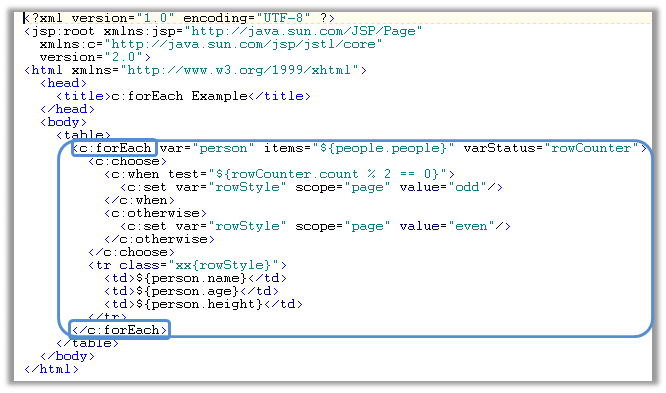
    Another way for looping in a JSP can be achieved by using the "forEach" tag:

    In this case, the EMF model will contain a JSPAction object whith the name of the tag ("c:forEach" here):

    This EMF object contains children which are the attributes of the tag (var, items, varStatus, ...) and the sub elements of the tag (a JSPAction "c:choose" and an Element "tr"):


    Monday, September 27, 2010

    How to create EMF models from JSP pages ?

    The next release of MoDisco (version 0.9) is under development and is planned to be released with Indigo. This release will come with new components for creating EMF models from the source code of JEE applications.

    The current version (version 0.8) already provides components for creating EMF models from java source code (see this older post). In next version, new components will be dedicated to JSP reverse-engineering. They have been developped by Fabien Giquel and Nicolas Guyomar of Mia-Software.

    They are composed of:
    • a metamodel for describing a JSP
    • a discoverer for creating a model from a set of JSP pages
    • a generator for generating JSP pages from a model
    The JSP metamodel (defined with Ecore) is an extention of the XML metamodel (also provided by MoDisco) which contains types such as Page, JSPScriptlet, JSPExpression, JSPTagLib, etc.


    The discoverer, is a component which analyzes JSP pages and creates an EMF model conforming to the JSP metamodel.

    It can be launched from a project, or directly from JSP pages.

    The result is an EMF model which can be opened with the MoDisco Model Browser.


    The generator allows regenerating JSP files from an EMF model (conforming to the JSP metamodel). While it still needs to be improved to support a better formatting, yet it can already be used to produce JSP files.

    With these new components, you can reverse-enginer JSP files and use EMF APIs in order to control coding norms, detect patterns, document existing pages or refactor them by applying transformation at the model level (and then use the generator to get a new version of your JSPs).